⚡
No self-hosted server required
P2P mode uses the official connection service by default for device discovery and handshake. Regular users do not need to prepare a Linux server or enter a signaling URL.
Access Windows Remote Desktop over P2P — without exposing RDP to the public internet. LocMSTSC uses Windows native mstsc and creates a P2P connection channel between your devices. The LocMSTSC connection service is only used for device discovery and handshake; Remote Desktop data does not pass through the official server.
The official connection service is responsible only for device discovery and handshake. Remote Desktop data is transmitted between the controller and the agent, and does not pass through the official connection service.
cd /root && apt update && apt install -y curl
curl -fL https://www.locmstsc.com/locmstsc-eturnal-setup-en.sh -o locmstsc-eturnal-setup-en.sh
chmod +x locmstsc-eturnal-setup-en.sh
bash locmstsc-eturnal-setup-en.sh
TURN is not needed by default on regular networks; P2P will try direct connection first. On complex restricted networks, carrier-grade NAT, or strict firewalls, if P2P connection fails, you can self-host a TURN service: turn:SERVER_IP:3478, and open TCP/UDP 3478 in the server firewall and cloud security group.
cd /root && apt update && apt install -y curl
curl -fL https://www.locmstsc.com/locmstsc-ssh-setup-en.sh -o locmstsc-ssh-setup.sh
chmod +x locmstsc-ssh-setup.sh
bash locmstsc-ssh-setup.sh
This script quickly initializes a self-hosted SSH relay environment. SSH relay mode is intended for technical users as a fallback connection path outside P2P.
Regular users do not need to understand SSH commands, signaling URLs, or port forwarding. LocMSTSC hides the complex connection process and keeps only the essential information: the agent ID and access password.
P2P mode uses the official connection service by default for device discovery and handshake. Regular users do not need to prepare a Linux server or enter a signaling URL.
After the agent starts waiting, copy the connection information. The controller can connect by entering the peer ID and access password. The password is verified locally by the agent.
LocMSTSC establishes the connection channel. Remote Desktop login, video, keyboard/mouse input, and clipboard are still provided by Windows native RDP / mstsc.
Whether it is a home PC, office PC, Hyper-V / VMware virtual machine, or public Windows server, LocMSTSC can connect to native mstsc through P2P or SSH. Regular users should start with P2P, while technical users can keep a self-hosted SSH relay as a fallback.
Start waiting on the agent, then enter the ID and access password on the controller. You can use Windows native Remote Desktop even without a public IP.
Suitable for managing Windows virtual machines on a local machine or server. You still log in to the system account through mstsc, with an experience close to directly using remote Windows.
Even Windows servers with public IPs should not expose RDP ports directly. LocMSTSC can connect through P2P / SSH and reduce the risk from public scanning and brute-force attempts.
The controller enters the peer ID and access password, while the agent starts waiting for connections. SSH relay is still available, but P2P is the preferred connection mode for regular users.
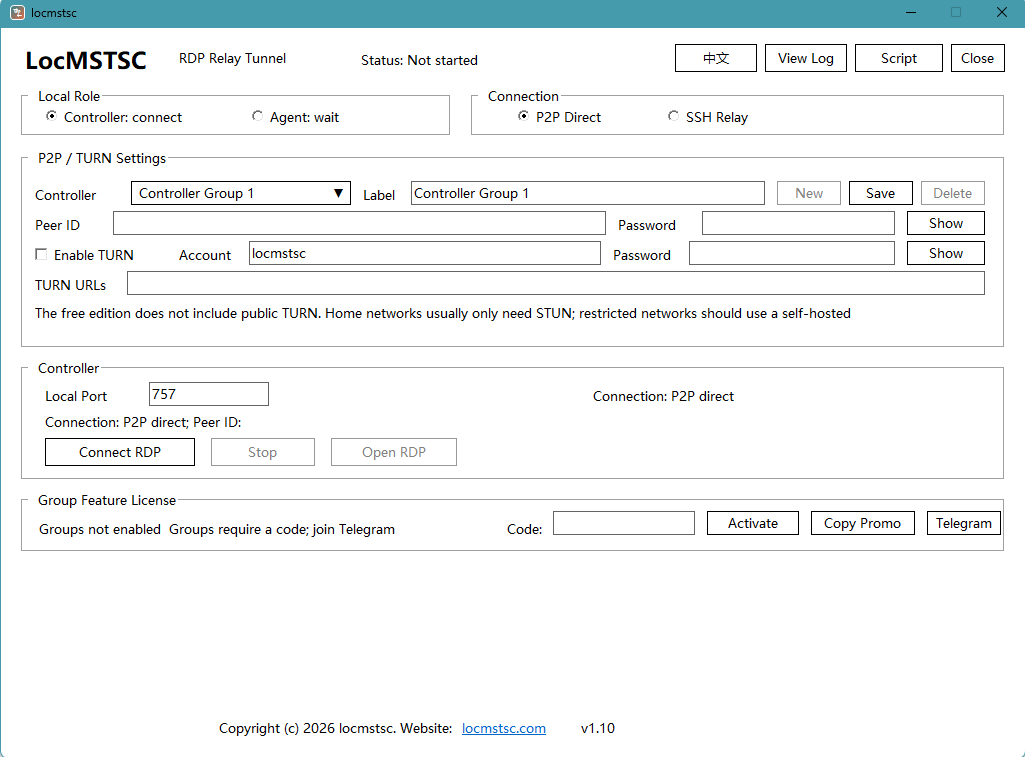
The controller only needs the peer ID, access password, and local port. After the P2P channel is established, click to open Remote Desktop and Windows native mstsc will connect to the local entry point.
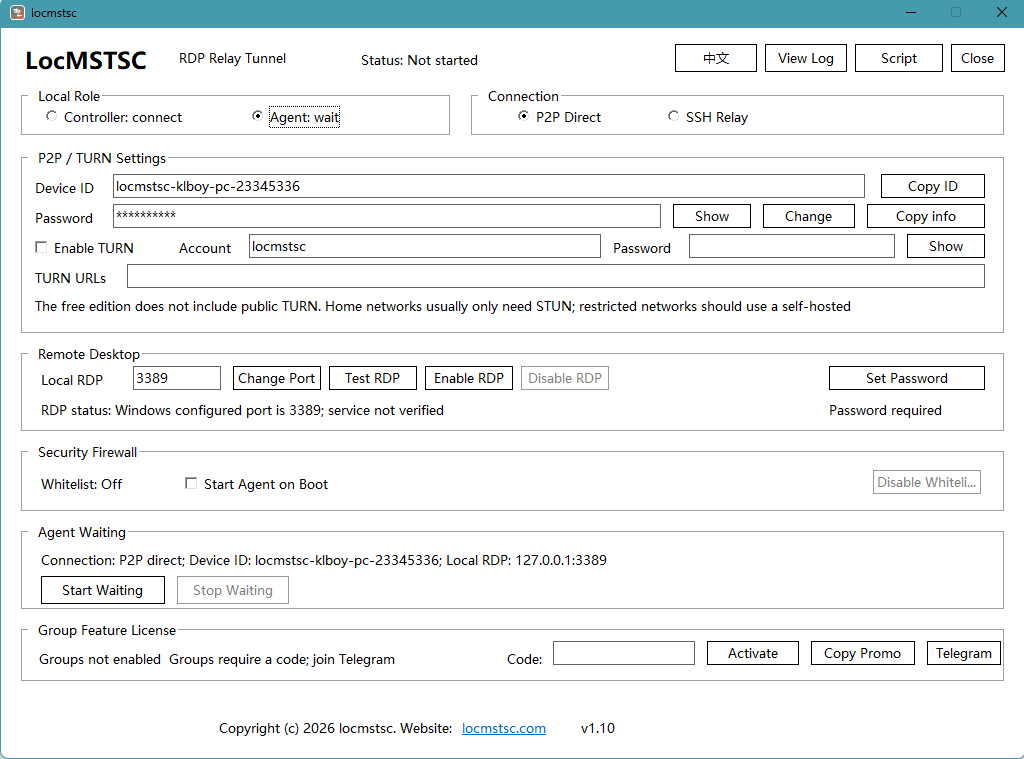
The agent displays the device ID and access password. Users can copy the connection information and send it to the controller. The RDP port is accessed only locally and does not need to be exposed directly to the public internet.
LocMSTSC P2P mode uses the official connection service for device discovery and handshake. Remote Desktop data is forwarded through the connection channel between the controller and the agent. Windows native mstsc still handles login and the desktop experience.
LocMSTSC does not take over Remote Desktop video and does not replace Windows login authentication. It establishes a controlled connection channel so mstsc can safely enter remote Windows.
Download for WindowsLocMSTSC organizes device discovery, connection handshake, P2P channel setup, firewall protection, and mstsc launch into a clearer desktop tool.
Remote Desktop login, video, keyboard/mouse input, and clipboard are still provided by Windows native RDP / mstsc.
LocMSTSC establishes a connection channel between the controller and the agent, reducing manual port configuration and public exposure.
Technical users can still use SSH relay mode, self-host servers, and control the connection path themselves.
LocMSTSC is not simple screen sharing. It lets users enter a Windows native Remote Desktop session through a P2P channel, making it suitable for using remote Windows as a workstation, server desktop, or private cloud PC.
These tools usually share the current screen with the other side, making them suitable for temporary desktop support, quick remote checks, and one-time assistance.
mstsc connects to a Windows native Remote Desktop session, which is better suited for using a Windows machine as your own remote workstation. LocMSTSC solves this problem: you can connect without a public IP, and even with a public IP you do not need to expose the RDP port directly.
LocMSTSC is not about showing off technology. Its goal is to make Windows Remote Desktop easier to connect while avoiding direct exposure such as public IP:3389 / 5555.
Directly exposing the Windows Remote Desktop port to the public internet can leave it under long-term scanning, brute-force attempts, and login probes.
P2P mode does not require opening the RDP port. The agent accesses 127.0.0.1:RDP only locally. After a real connection succeeds, LocMSTSC can prompt you to enable public RDP protection.
LocMSTSC is not trying to replace frp. frp is a general-purpose intranet tunneling tool, while LocMSTSC focuses only on Windows native mstsc Remote Desktop connections.
Suitable for general intranet tunneling, reverse proxy, and exposing multi-protocol services such as Web, API, TCP, UDP, HTTP, and HTTPS.
Focused only on Windows native Remote Desktop. Regular users should use P2P first, while technical users can use SSH relay without exposing general intranet services.
P2P is the default recommended mode in LocMSTSC. SSH relay remains available for advanced users in special network environments or when a fully controlled connection path is required.
No self-hosted server, no signaling URL, and no SSH command knowledge required. Enter the ID and access password to connect.
P2P attempts to establish a more direct connection path and reduce detours. The actual experience depends on both networks, NAT, firewalls, and routing conditions.
If P2P is not suitable for certain network environments, technical users can still use self-hosted SSH relay mode.
P2P is the default recommended mode. For technical users who want a fully self-hosted connection path, LocMSTSC still keeps SSH relay mode. SSH mode requires your own Linux server, and speed depends on the server network route.
Regular users do not need a server and can connect directly with an ID and access password.
Technical users can self-host an SSH relay server for special network environments or a fully controlled path.
Website: locmstsc.com. Telegram: https://t.me/locmstsc
LocMSTSC is a P2P Remote Desktop connection tool based on Windows native mstsc. Regular users can use P2P mode and connect with the agent ID and access password; advanced users can also use SSH relay mode.
Some older Windows systems may report that ssh.exe is missing. OpenSSH is required only for SSH relay mode. Download the matching version and extract it into the same directory as locmstsc.exe.
https://github.com/PowerShell/Win32-OpenSSH/releases/latest/download/OpenSSH-Win64.zip
https://github.com/PowerShell/Win32-OpenSSH/releases/latest/download/OpenSSH-Win32.zip
locmstsc.com · Native Windows Remote Desktop P2P connection tool · Telegram: https://t.me/locmstsc
A concise explanation of LocMSTSC positioning, P2P mode, security boundaries, and SSH fallback.
LocMSTSC is a Remote Desktop connection tool based on Windows native mstsc. It does not reimplement RDP; instead, it helps users connect to remote Windows more conveniently and safely through P2P / SSH channels.
Regular users do not need to configure a server. LocMSTSC includes the official connection service for device discovery and connection handshake. Remote Desktop data does not pass through the official connection service.
No. The official connection service only handles device online registration and connection handshake. It does not transmit desktop video, keyboard/mouse input, or RDP data.
The controller needs the agent ID and access password. The agent can copy the connection information with one click.
Opening it is not recommended. P2P mode does not require directly opening the Remote Desktop port. LocMSTSC accesses RDP through local 127.0.0.1 and can prompt you to enable public RDP protection after a successful connection.
LocMSTSC uses Windows native mstsc, which feels more like entering your own remote Windows session. TeamViewer / ToDesk are more oriented toward screen sharing and temporary assistance.
frp is a general intranet tunneling tool. LocMSTSC focuses only on Windows native Remote Desktop. Regular users should use P2P first, while technical users can use SSH relay.
SSH mode is suitable for technical users who want to self-host a relay server as a compatibility or fallback option outside P2P.
Yes. P2P mode is designed for this scenario. Home PCs, office PCs, and virtual machines can all start waiting for connections.
Yes. Even with a public IP, directly exposing the RDP port is not recommended. LocMSTSC can reduce the direct exposure surface.